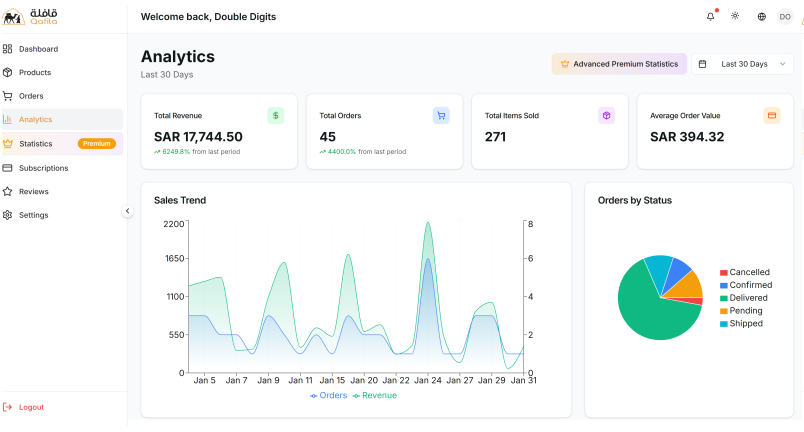

Getting Started as a Seller
Joining Qafila opens new opportunities for your business to sell, scale, and connect with trusted buyers. We've made the registration process clear and straightforward, so you can focus on building your store and growing your sales.
Step 1: Register Your Account
Start by clicking the Register button in the hero section of the page. This will take you to the seller registration flow, where you begin setting up your Qafila store.

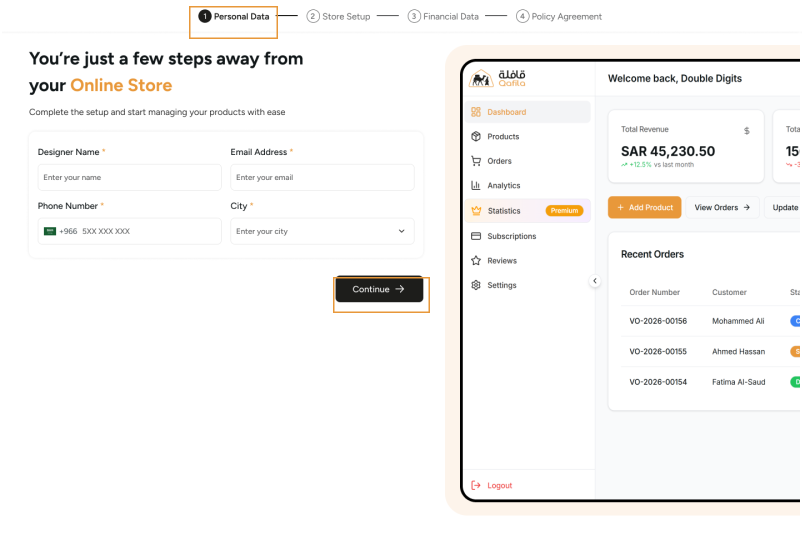
Step 2: Enter Your Personal Data
- 1- Fill in your basic personal information so we can create your seller profile.
- 2- This includes your full name, email address, city, and phone number.
- 3- These details are used for communication and account verification only.
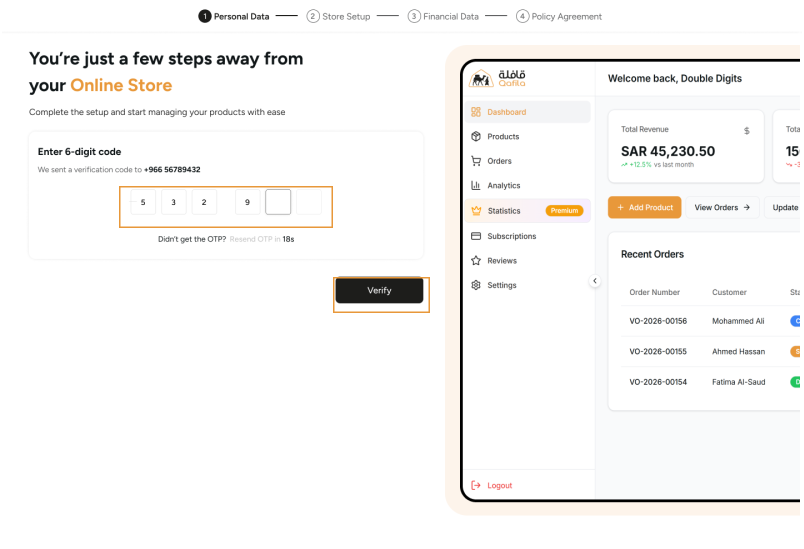
Step 3: Verify Your Phone Number (OTP)
- 1- A 6-digit verification code will be sent to your phone number.
- 2- Enter the code to verify your identity and secure your account.
- 3- This step ensures only you can access and manage your seller account.
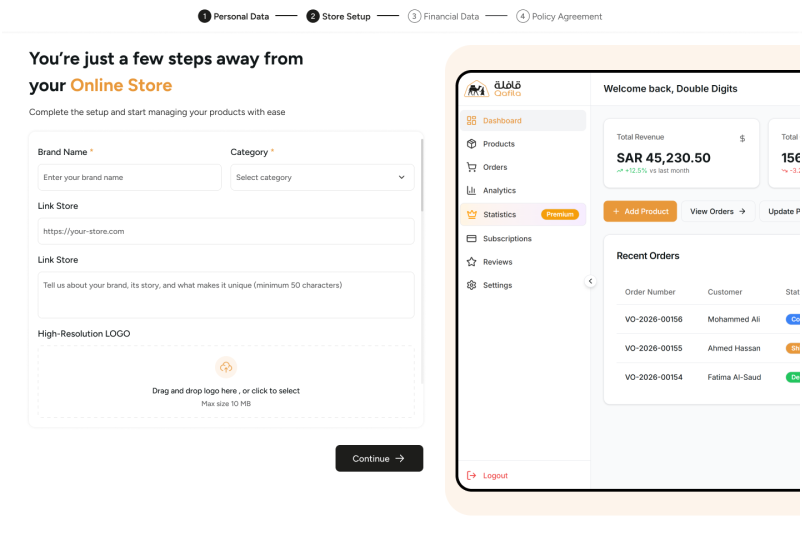
Step 4: Set Up Your Store
- 1- Choose your store name, upload a logo, and write a short description.
- 2- This is your brand identity on Qafila — make it stand out to attract buyers.
- 3- You can update your store details anytime from the vendor dashboard.
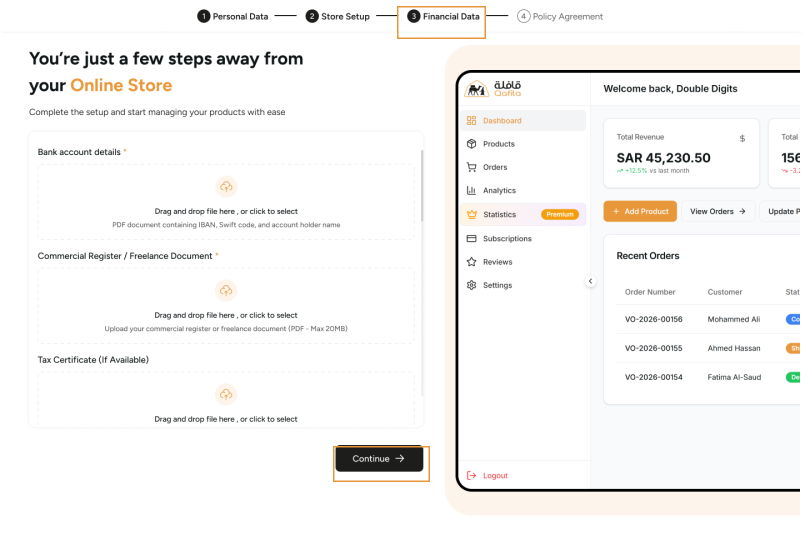
Step 5: Add Transaction & Business Documents
- 1- Provide the required business and financial information to enable transactions.
- 2- This includes your Commercial Register or Freelance Document, along with your bank account details for payouts.
- 3- All information is securely stored and used only for payment processing.
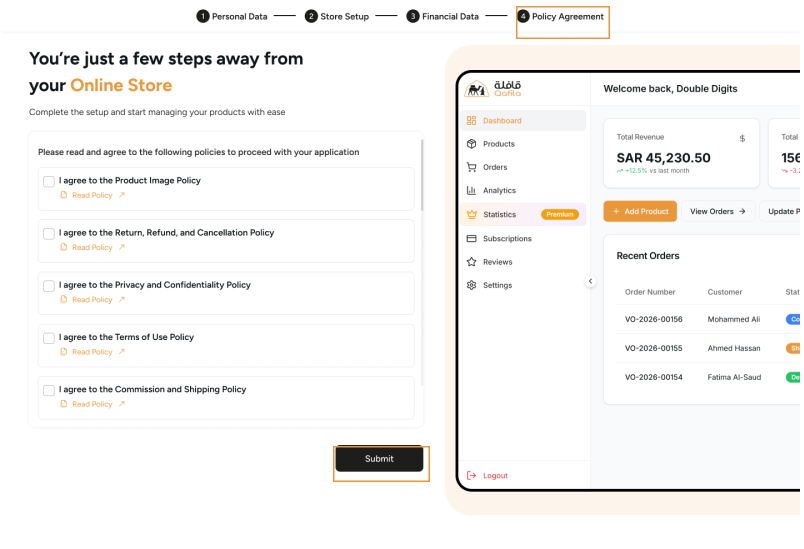
Step 6: Review and Accept Policies
- 1- Read and agree to the following policies to proceed with your application.
- 2- Review Qafila's policies and terms to protect both your rights and the platform's rights.
- 3- Accepting these policies ensures transparency, secure transactions, and a trusted selling environment for everyone.
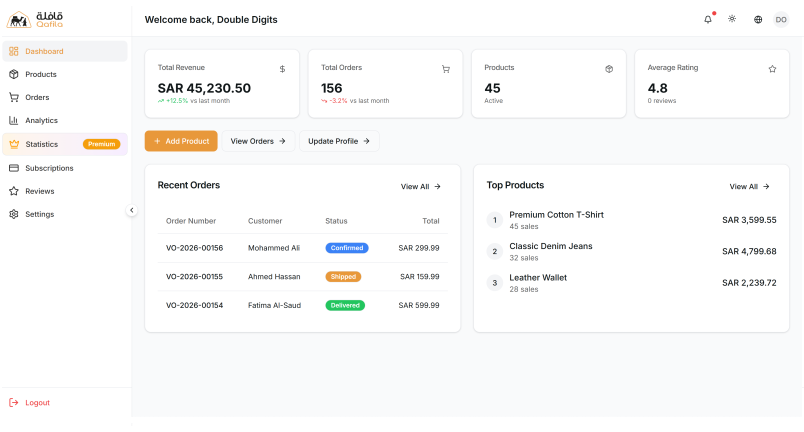
Step 7: Access Your Store Dashboard
- 1- Once your information is submitted and verified, you'll gain access to your store dashboard.
- 2- This is where you manage everything related to your store and start selling on Qafila.
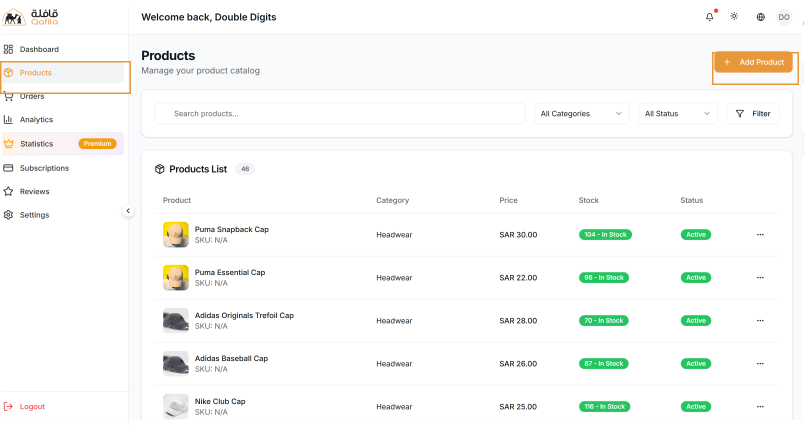
a- Products Tab
- 1- Add, edit, and manage your products with ease.
- 2- Upload product details, set prices, and control availability directly from this section.
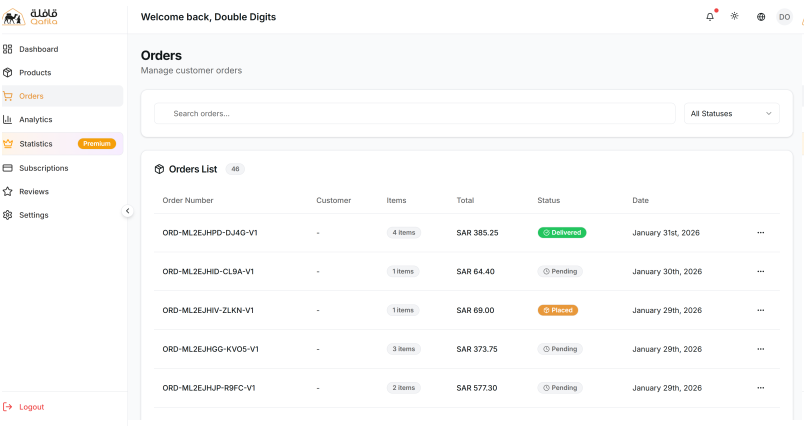
b- Orders Tab: Manage and track all your orders in one place
- 1- View and manage all incoming orders from customers.
- 2- Track order status, process shipments, and handle returns from this section.
c- Statistics Tab: Track your performance and understand the market
- 1- View detailed insights about your store's performance, including sales, orders, and product activity.
- 2- Upgrade your Qafila package to unlock advanced market insights and compare your brand with competitors.